
Free AI Background Removers Compared (2026): Which Ones Keep the Hair?
We ran the same three photos through seven AI background removers, free tiers only. Here is what each one gets right, where the free plan stops, and which to pick for product shots, portraits and design work.
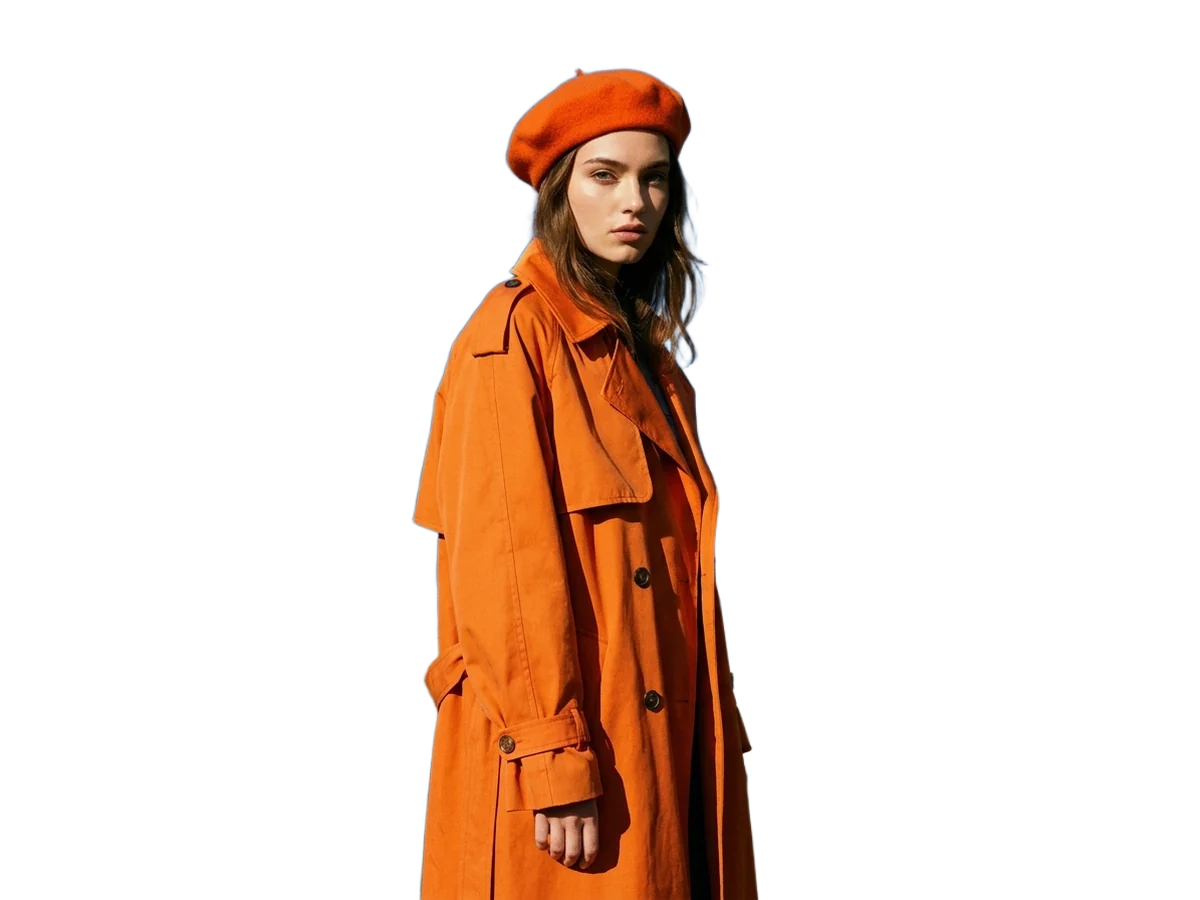
Removing a background used to be the job you handed to a retoucher. In 2026 every AI editor claims to do it in one click, and most of them do. The differences show up in three places: how the free plan is limited, what happens to hair and fine edges, and what you can do with the cutout afterwards.
We tested seven tools with the same three photos: a portrait with loose hair against a busy street, a product on a reflective table, and a dog on grass. Below is what we found, in the order we would recommend them for most people. Plans change often, so treat the free-tier notes as a snapshot from October 2026 and check the current page before you commit.
The short answer
- Best free option for product photos and portraits you will keep editing: DREAMMMER. 3 credits per cutout, 50 free credits at sign-up, a transparent PNG, and the result opens in a chat where you can add a background, a shadow or a different crop.
- Best if you only need a quick, low-resolution preview: remove.bg. The most polished single-purpose tool, but the free download is small.
- Best inside a design workflow: Canva or Adobe Express, if you already pay for them.
- Best batch tool: Photoroom, once you are on a paid plan.
How we judged
- Edges. Hair strands, fur and the semi-transparent edge of a glass. This is where cheap removers fail: they either shave the hair into a helmet or leave a grey halo.
- Free tier. Resolution of the free download, watermarks, and how many images you get before paying.
- What comes next. A cutout is rarely the end. Can you put a new background behind it, relight it, or export it at the size you need without switching apps?
1. DREAMMMER Background Remover
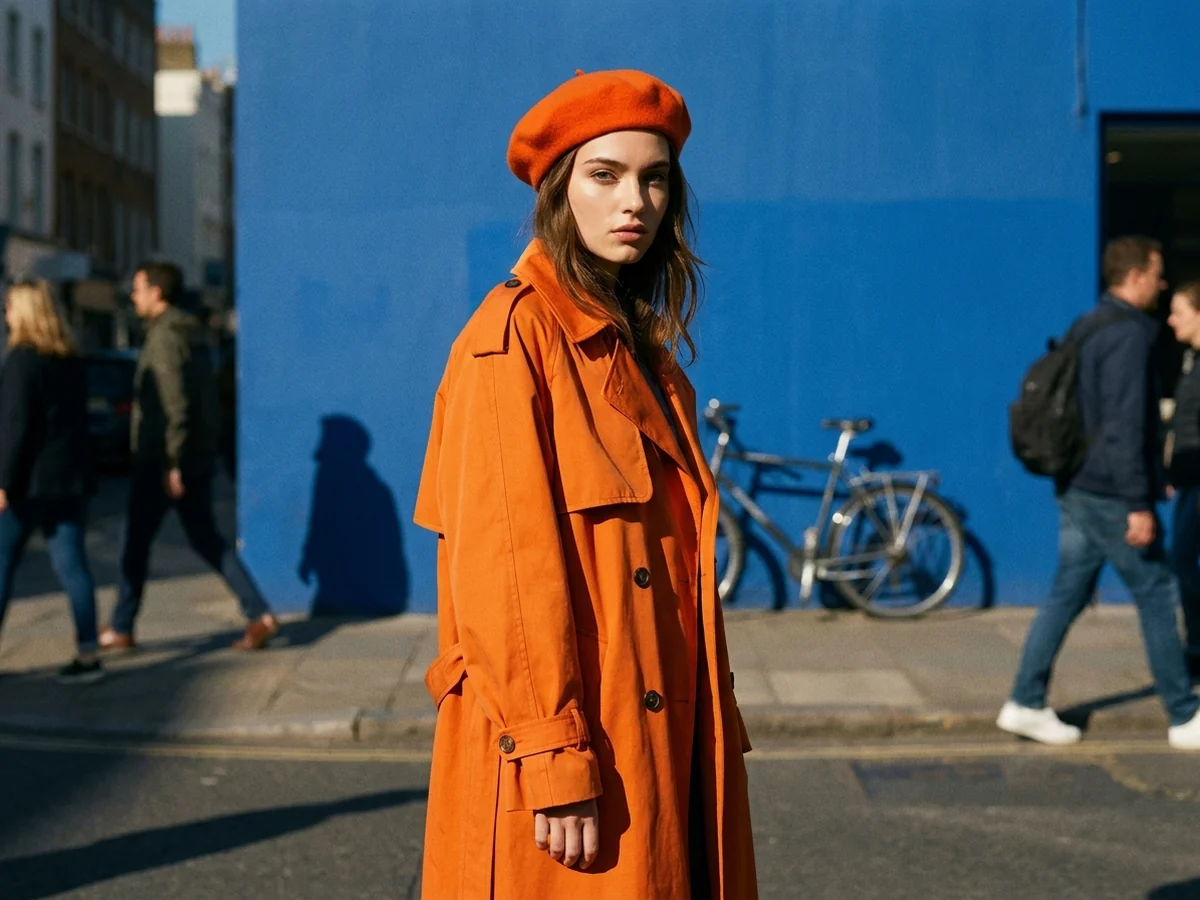
DREAMMMER's background remover runs on a dedicated cutout model rather than a general image generator, which matters for hair: it separates strands instead of redrawing them. On the portrait test it kept individual flyaways against the street lights; on the dog it kept the fur edge without a halo.
What you get:
- A PNG with real transparency from a JPEG, PNG or WebP upload of up to 5 MB.
- 3 credits per removal. New accounts start with 50 free credits, so about 16 cutouts before you pay anything. Free-account downloads carry a small DREAMMMER mark in the corner; any credit pack or plan removes it.
- The result opens in a chat with the Agent. "Put her on a light grey studio wall", "add a soft shadow under the product", "make it square for Instagram" are all one message away, and the background changer does the scene swap in one click.
Where it is weaker: there is no bulk upload yet. If you have 300 catalog images, you want Photoroom or a paid API.
The original behind the cutout at the top of this article:
2. remove.bg
The tool that made one-click background removal mainstream, and still one of the cleanest on hair. The catch is the free plan: you can preview at full size, but the free download is a reduced-resolution image. For a social avatar that is fine; for a print or a product listing you will need credits.
Pick it when you need one quick cutout and nothing else.
3. Photoroom
Photoroom is built for sellers. It removes the background and immediately offers templates, shadows and batch processing, which is exactly what a marketplace catalog needs. Edge quality on products is excellent; on hair it is good but a step behind the top two. The free tier adds a watermark and limits exports, so plan on the subscription if you use it seriously.
4. Canva Background Remover
If you already live in Canva, its remover is the convenient choice: one click inside the design you are making. It is a paid feature (Canva Pro), and the hair handling is adequate rather than great. Fine for presentations and social graphics, less so for close-up portraits.
5. Adobe Express
Adobe's free remover produces clean edges on products and does a respectable job on hair. Downloads on the free plan are limited in resolution and quantity, and the real value is in the surrounding Express editor. A sensible pick for marketing teams on Creative Cloud.
6. Pixelcut
A fast mobile-first option with a free tier that handles simple subjects well. Complex hair and fur show more artifacts than the tools above, and the free download is limited. Good for quick social posts from your phone.
7. removal.ai
Decent results on clear subjects and a generous free preview, but downloads at full resolution need credits, and the edges on fur were the softest in our test.
Which should you use?
| Need | Pick | | ---------------------------------- | -------------------------------------- | | Hair, fur, glass edges | DREAMMMER, remove.bg | | Free cutouts to start with | DREAMMMER (50 free credits) | | Replace the background right after | DREAMMMER (chat or Background Changer) | | Hundreds of catalog images | Photoroom (paid) | | Already inside a design tool | Canva, Adobe Express |
How to remove a background with DREAMMMER
- Open the background remover and drop in a JPEG, PNG or WebP (up to 5 MB). No prompt to write.
- Click Start. The cutout arrives in a few seconds as a transparent PNG.
- Keep going in the chat: ask for a new background, a shadow, a crop, or an upscale for print.
FAQ
Is DREAMMMER's background remover really free? You get 50 credits when you sign up and each removal costs 3, so the first sixteen or so are free. Credit packs and plans remove the small corner mark on downloads.
Does it keep hair? Yes. It uses a model trained for cutouts, so it separates hair rather than painting it.
What file do I get back? A PNG with real transparency, ready to place on any background.
Can I change the background instead? Yes. Use the Background Changer, or describe the scene you want in the chat after the cutout.