How to Turn a Photo into Pixar Style with AI (Prompt, Tools, Tips)
The prompt that actually works, the settings that keep the person recognizable, and the tools that do it in one step. Includes a before-and-after made with the exact prompt.
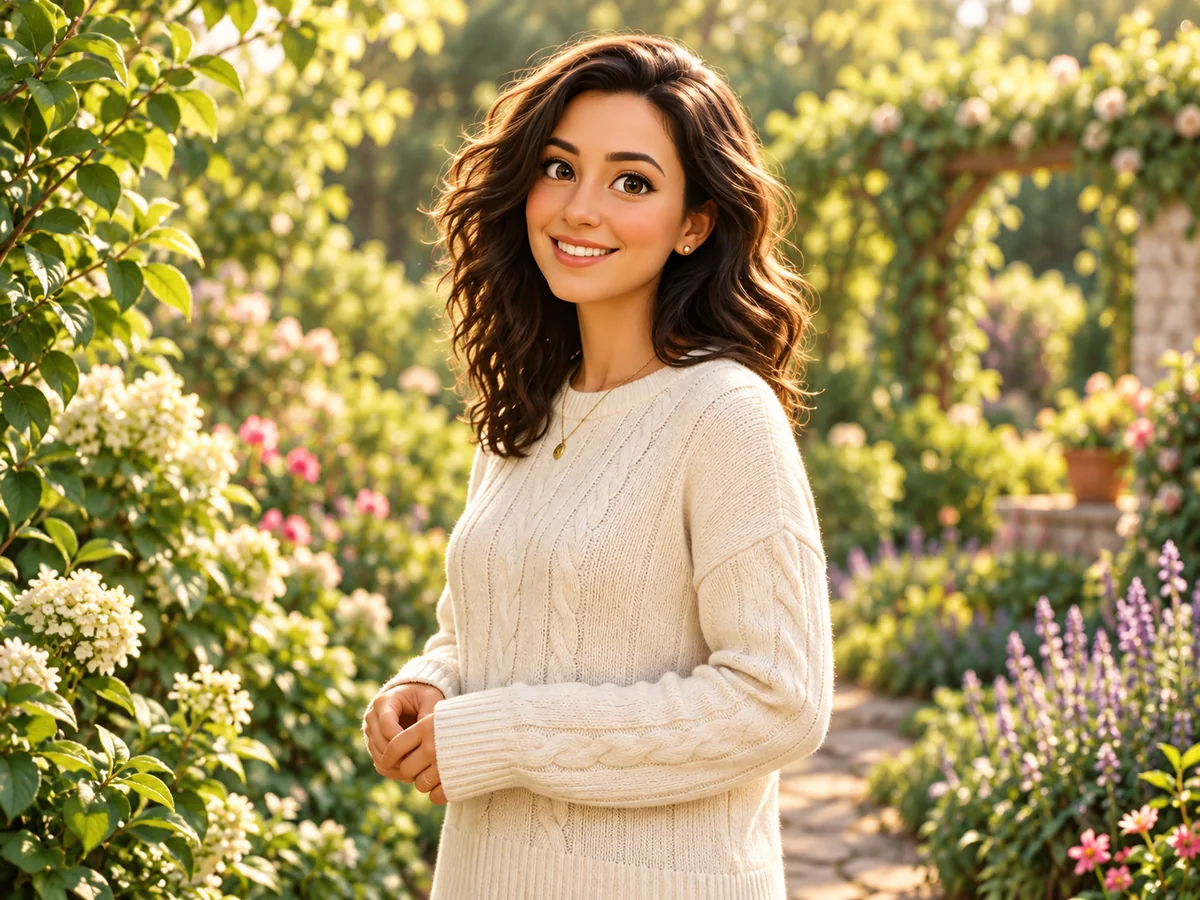
"Make me look like a Pixar character" is one of the most common requests any image AI gets, and one of the easiest to get wrong. Too little styling and you get a slightly smoothed photo; too much and the person disappears into a generic cartoon. This guide gives you the prompt we use, what to keep fixed, and three ways to run it.
The prompt
Paste this with your photo attached:
Redraw this photo in Pixar 3D animation style. Keep the same person, pose, clothing, framing and background. Big expressive eyes, soft subsurface-scattering skin, smooth rounded shapes, warm cinematic lighting, shallow depth of field. Photorealistic render quality, not a flat cartoon.
Why each part is there:
- "Keep the same person, pose, clothing, framing and background" is the line that keeps it recognizable. Without it, models happily invent a new character.
- "Big expressive eyes, soft skin, rounded shapes" is the actual Pixar look. "Pixar style" alone is vague; the model knows the studio name but responds better to the visual traits.
- "Warm cinematic lighting, shallow depth of field" gives the rendered-film feel rather than a sticker.
- "Photorealistic render quality, not a flat cartoon" stops it collapsing into clip art.
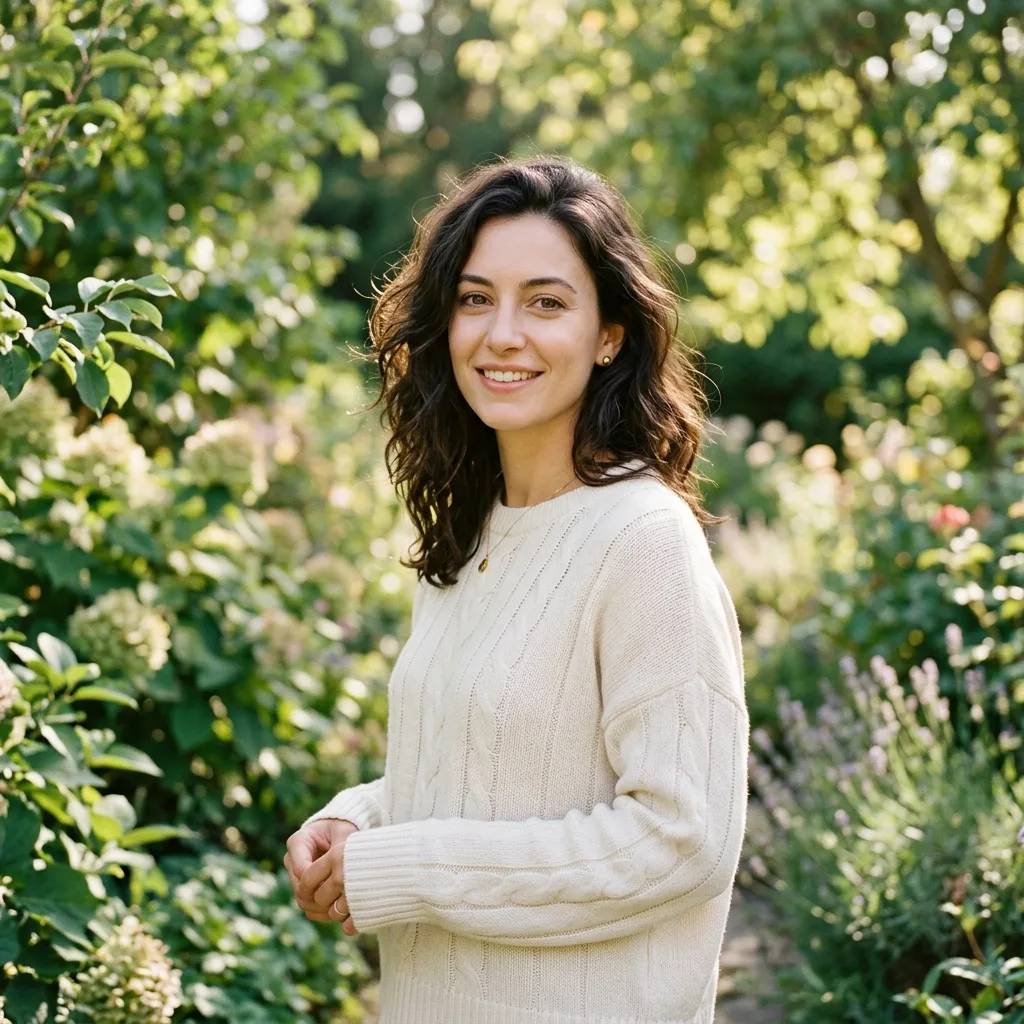
The Pixar render at the top of this article was made with exactly that prompt from this photo:
Option 1: DREAMMMER (one click, then adjust in chat)
On DREAMMMER the Pixar look is a built-in template: pick Style transfer, Pixar 3D on the home page, attach your photo and send. The Agent writes the full prompt for you, picks an editing model suited to keeping the person recognizable, and returns the result in a chat.
That chat is the useful part. Typical follow-ups:
- "Keep my glasses." Edit models sometimes drop accessories; one message brings them back.
- "Less cartoon, closer to the photo." Dials the styling down.
- "Same style for this second photo." Keeps the look consistent across a family set.
- "Make it 9:16 for a story." Or run the image expander to widen it.
Each image costs credits depending on the model the Agent picks, from 7 credits on the most affordable editing model, and new accounts start with 50 free credits. If you want a specific model, choose it in the composer before sending.
Option 2: ChatGPT with image generation
Attach the photo, paste the prompt. GPT's image model follows style instructions well and keeps likeness reasonably; it tends to brighten and smooth more than the prompt asks, so add "keep the lighting of the original" if that happens. Usage is subject to the plan's image limits.
Option 3: Midjourney (image prompt + style reference)
Upload the photo as an image prompt, add the text prompt and a high image weight (--iw 2) so the result stays close to the source. Midjourney produces the most painterly, cinematic renders but is the least faithful to the original face unless you use character reference features, and it needs a subscription.
Tips that make the difference
- Start from a sharp, front-lit photo. Blurry or backlit sources give the model room to invent.
- One person per run. Group photos work, but identities drift more; do them one at a time and composite if you need to.
- Say what must stay. Glasses, a scar, a particular hair color, the dog in the background. Anything you do not mention is up for interpretation.
- Ask for variations. Three versions of the same prompt cost three images and give you one you love.
- Upscale before printing. A 1K render looks great on a phone and soft on a wall; the HD upscaler fixes that.
Related looks
The same template approach works for other studio styles on DREAMMMER: Disney (bigger eyes, smoother 3D shading), Ghibli (hand-painted watercolor backgrounds, soft outlines) and a 3D caricature avatar with an oversized head on a plain color background. Each is one click on the home page under Style transfer.
FAQ
Will I still look like me? With the "keep the same person" line in the prompt and an editing model that preserves identity, yes. Compare with the original and ask for a closer version if it drifted.
Is it free? On DREAMMMER, new accounts get 50 credits and a Pixar-style edit starts at 7 credits depending on the model, so the first few are free.
Can I do it from my phone? Yes. The DREAMMMER home page works in a mobile browser; attach a photo from your camera roll and send the template.
Can I turn the result into a short clip? Yes. In the same chat, ask the Agent to animate it; it will pick a video model and return a short clip of the character.