GPT Image 2 AI Image Generator

Turn an ordinary brief into a finished visual with GPT Image 2.

Made with GPT Image 2

Original examples generated with this model. Open an example to see its prompt and output details.

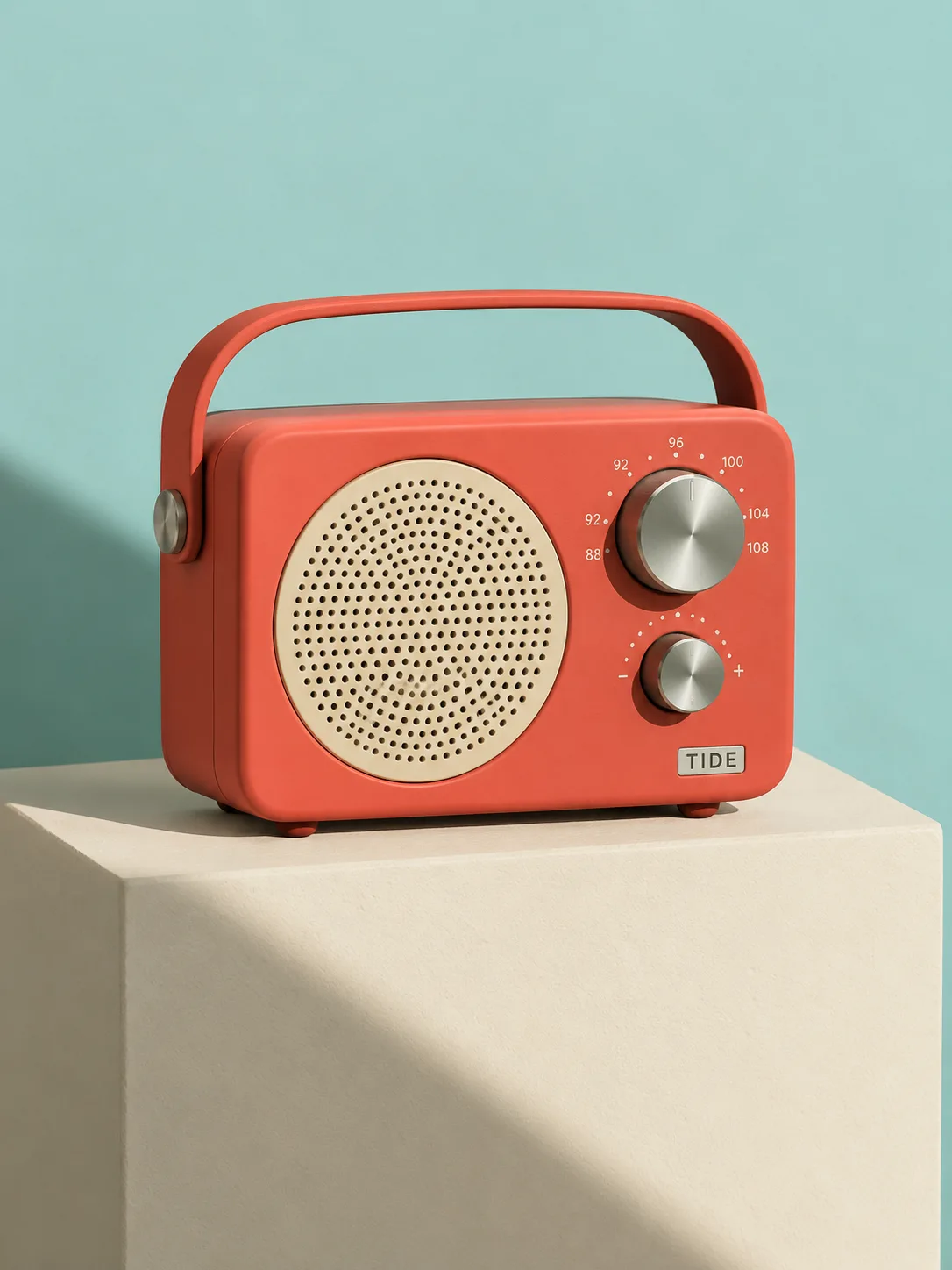
Coral radio studio

GPT Image 2 · 1086 × 1448

Prompt

A playful but realistic product photograph of a compact coral-red portable radio with one circular ivory speaker, two brushed steel knobs and a small label reading TIDE. It sits on a cream pedestal against a pale turquoise backdrop. Strong late-afternoon shadow, tactile matte plastic and finely perforated speaker grille, clean mid-century industrial design. Full composition, no border, no watermark.
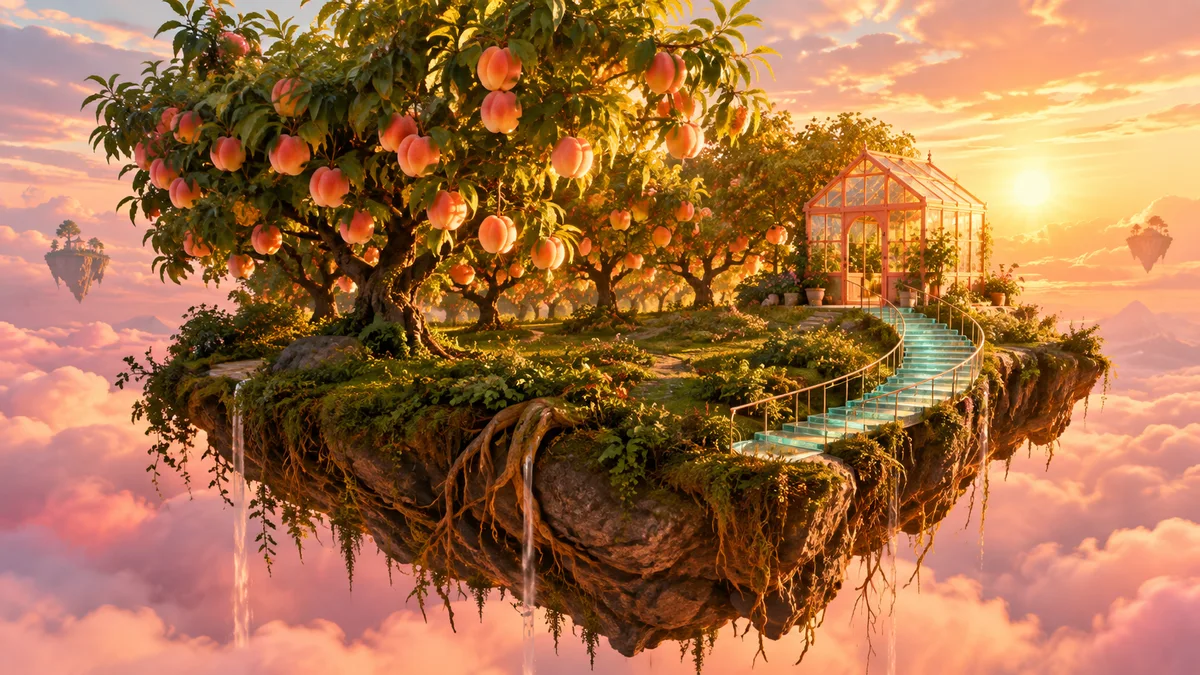
Floating orchard

GPT Image 2 · 1672 × 940

Prompt

An enormous peach orchard grows on a small floating island above soft pink clouds. A curved turquoise glass stairway leads to a tiny coral greenhouse. Golden-hour rays illuminate translucent fruit and the island roots, cinematic wide composition, an imaginative world rendered with believable natural textures and atmospheric depth. Full composition, no border, no watermark.

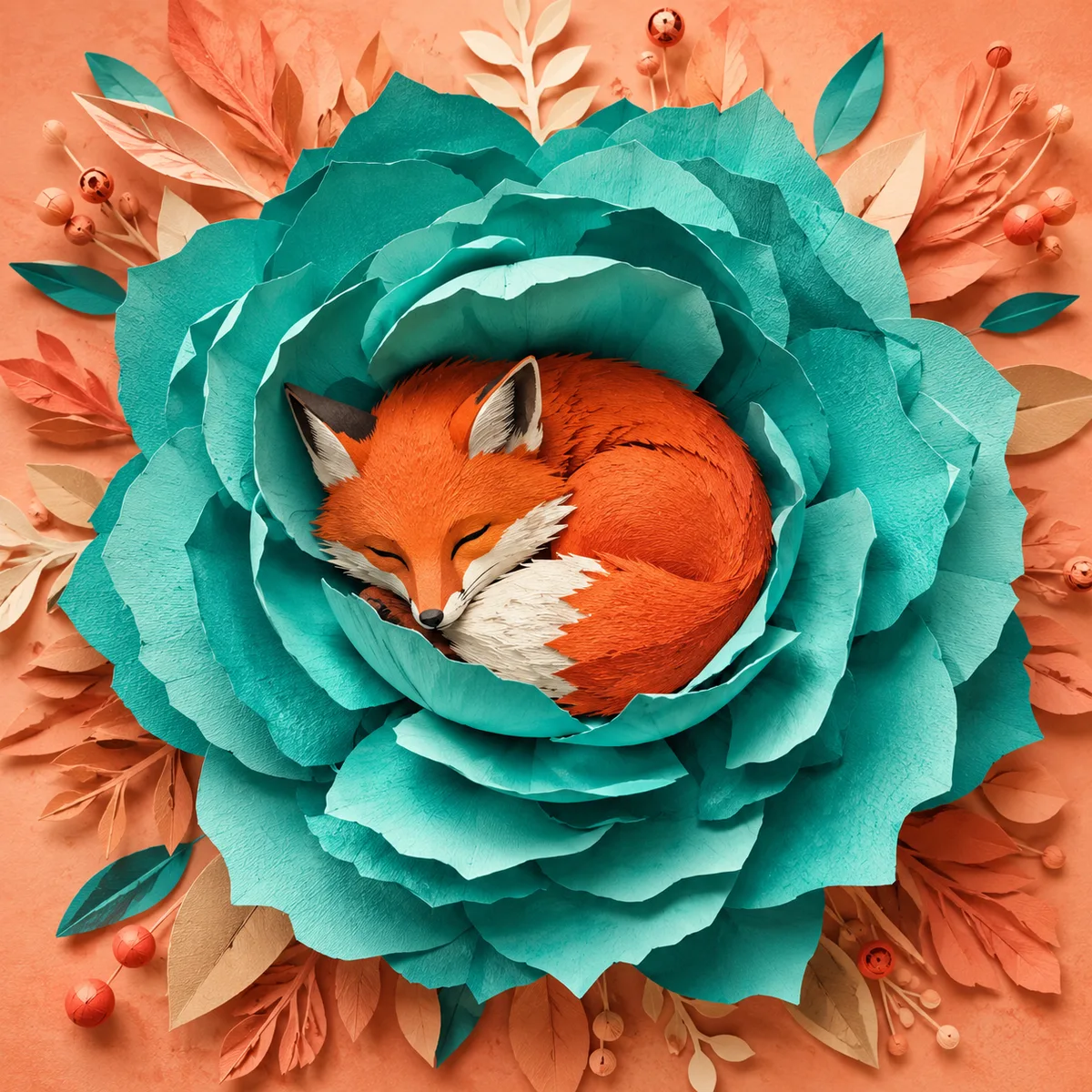
Folded-paper fox

GPT Image 2 · 1254 × 1254

Prompt

A charming original red fox sleeps curled inside a giant folded turquoise paper flower. Intricate layered paper-cut illustration, visible paper fibers, warm peach background, gentle shadows, restrained premium picture-book aesthetic. Strong central silhouette, careful separation of overlapping petals, no text. Full composition, no border, no watermark.

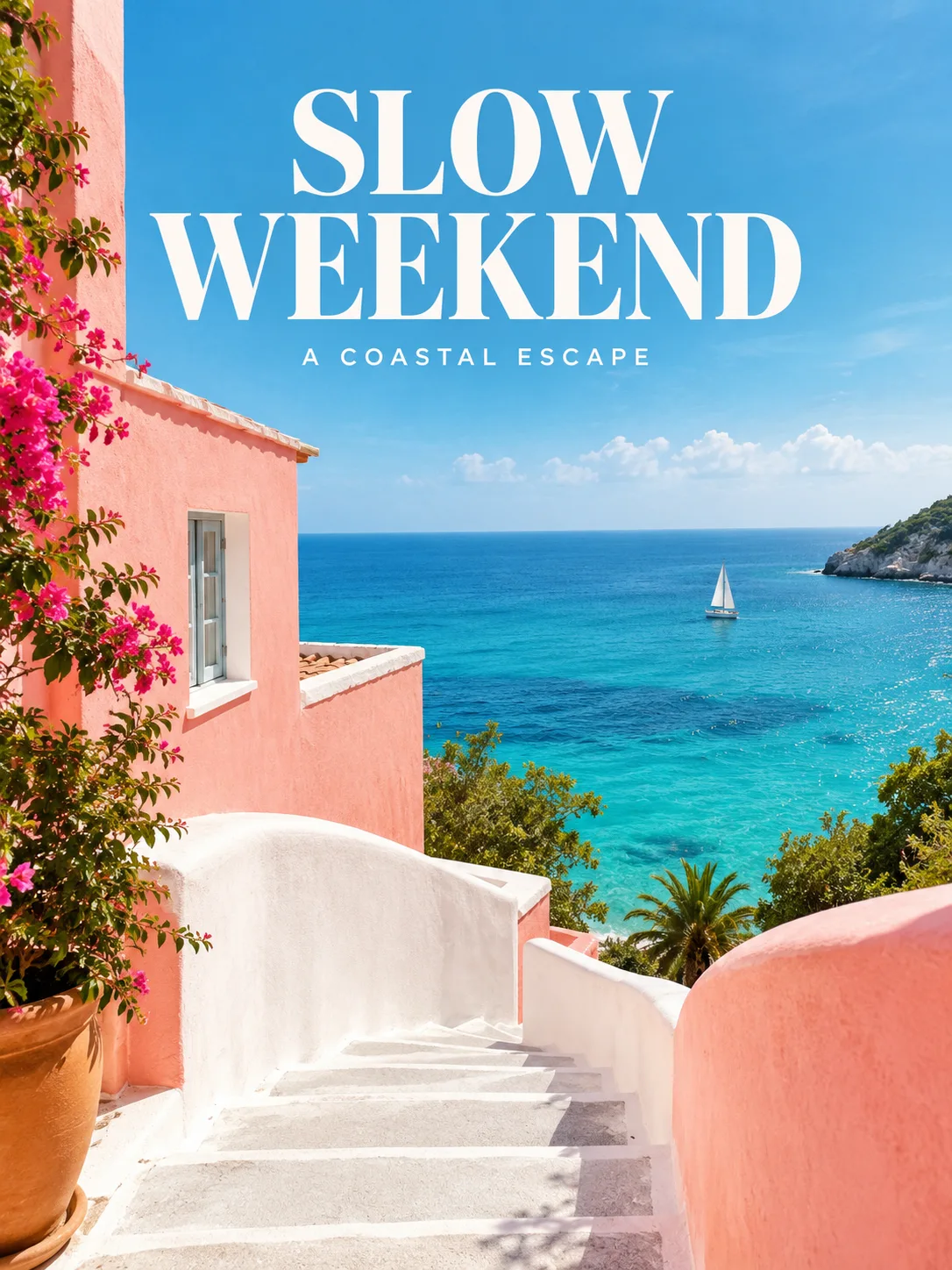
Slow weekend cover

GPT Image 2 · 1086 × 1448

Prompt

Create an editorial travel cover with exact large headline SLOW WEEKEND and small text A COASTAL ESCAPE. A white staircase curves through a coral-pink coastal house toward a turquoise sea. Bright clean photography, deliberate negative space, tasteful bold serif headline and small sans-serif supporting text, refined magazine layout. Full composition, no border, no watermark.

What you can create

Turn an ordinary brief into a finished visual with GPT Image 2. Create an image from your description, bring in a reference, and keep editing in chat. These examples explore product design, surreal environments, paper craft, and a magazine cover.

One brief, several visual directions

A coral radio can become a clean studio advertisement or the focal point of a colorful room. Describe the object, intended use, and atmosphere together. Keep one approved direction as your reference when you want the next result to feel related.

Explore materials and impossible places

Try a floating orchard or a folded-paper fox to test how your idea translates into a scene. Specify the scale of the subject, the camera position, and the material texture. A strong subject-background relationship often matters more than a long list of adjectives.

Edit an existing composition

Bring the generated radio into another setting, then adjust the time of day. Each edit in our sequence starts from the preceding image. This makes the change easy to inspect and keeps the creative conversation connected to a visible result.

One image, three creative decisions

Each revision uses the previous result as its reference. Compare what changes and what stays recognizable.

Original image
Original image
Prompt

A playful but realistic product photograph of a compact coral-red portable radio with one circular ivory speaker, two brushed steel knobs and a small label reading TIDE. It sits on a cream pedestal against a pale turquoise backdrop. Strong late-afternoon shadow, tactile matte plastic and finely perforated speaker grille, clean mid-century industrial design. Full composition, no border, no watermark.
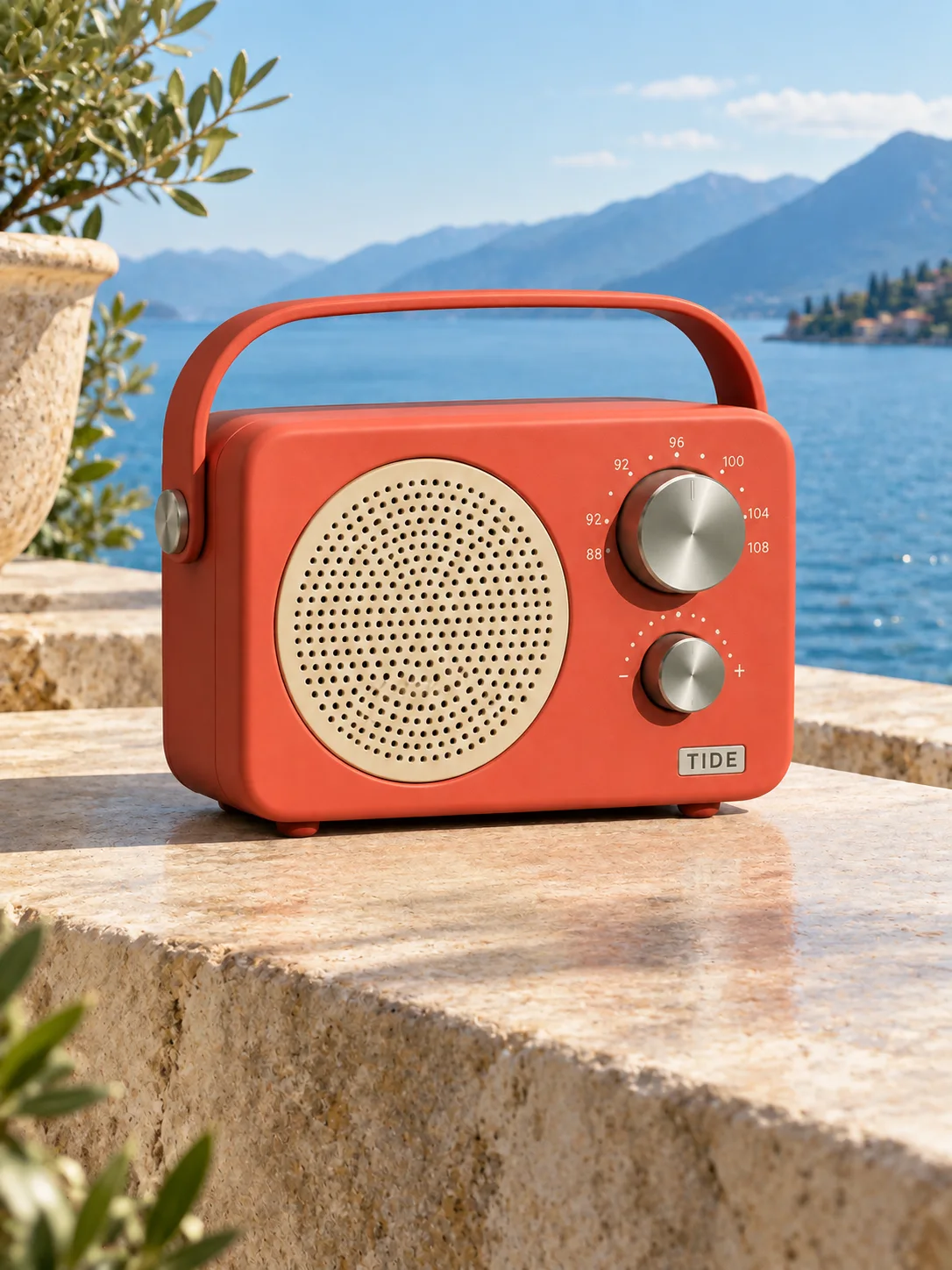
A new setting
A new setting
Prompt

Use the supplied image as the product reference. Preserve the exact product silhouette, construction, colors, logo and readable label. Replace only the setting with a sunlit sculptural stone terrace overlooking a calm blue lake and distant mountains. Keep a similar camera angle, realistic scale and the complete product in frame. Premium commercial photography, precise natural shadows and coherent reflections. No extra text, no watermark.

A new time of day
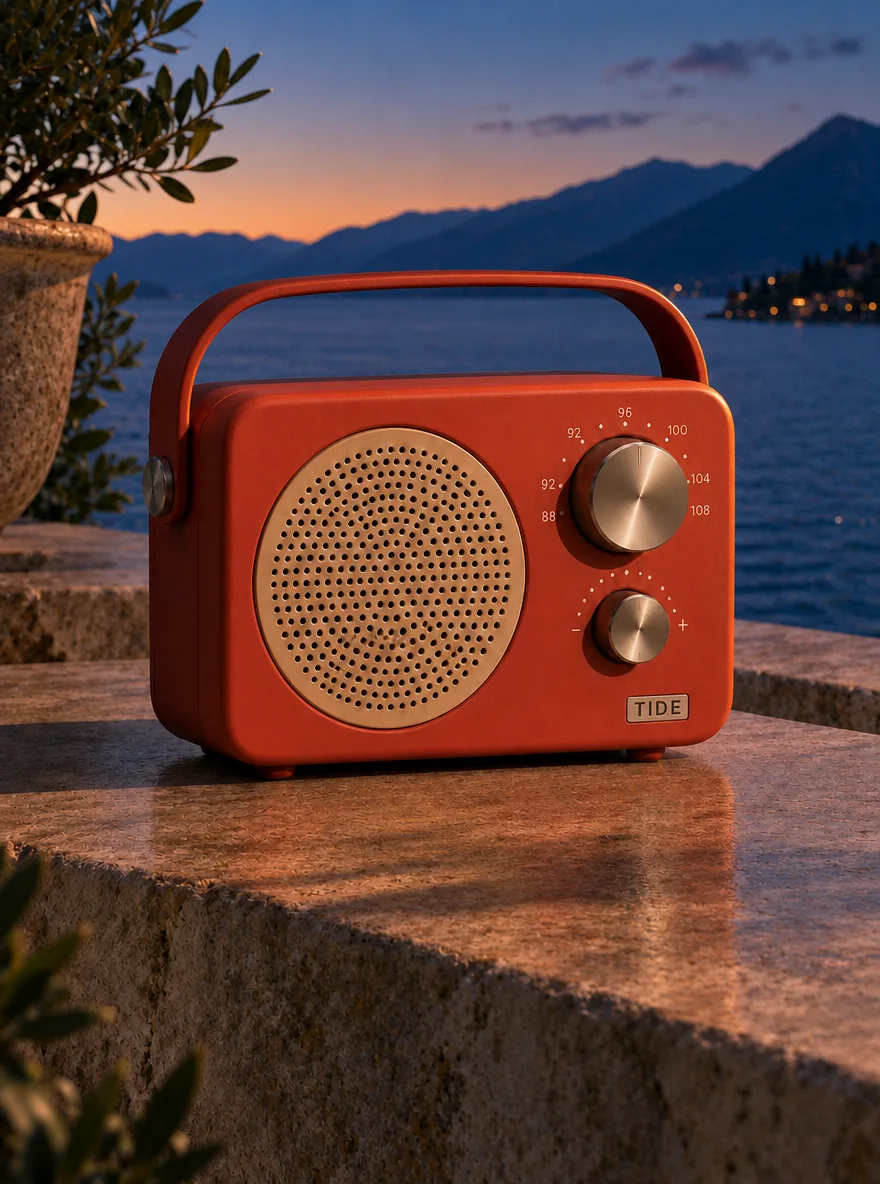
A new time of day
Prompt

Use this result as the reference for one more edit. Preserve the exact product, label, shape, surface, lake, mountain background and camera composition. Change the daylight to a refined blue-hour mood with a warm amber rim light on the product and subtle warm reflections. Keep the important details legible and the product recognizable. No added objects or text, no watermark.

To reproduce an edit, attach the previous image as a reference along with the displayed prompt.

How to create with GPT Image 2

  1. Describe the result

    Tell the agent the subject, composition, and intended use. Add a reference when the selected model supports it, and say which details should be preserved.

  2. Choose your settings

    This page starts with the featured model selected. Review the aspect ratio, available output size, and credit estimate. For video, also choose a duration that fits the action.

  3. Review and keep creating

    Open the completed work and inspect the details. Continue in chat with a specific revision, or download a result you want to use. Check visible text and listen to generated sound before publishing.

Settings and credits

These are the settings connected in DREAMMMER. The table shows output credits without reference inputs; your composer estimate includes the inputs and settings of the actual request. Try images at 1K for free. 2K and 4K require paid access; actual dimensions depend on model and aspect ratio.

OutputCredits
1K · per image20
2K · per image45
4K · per image70

Frequently asked questions

Can GPT Image 2 generate and edit images here?

Yes. The composer supports text-to-image generation and image-based editing with this model. Attach a reference and describe what should change; explicitly mention details that must stay recognizable.

Is this the same page as GPT Image 2.5?

No. GPT Image 2, Flare, and Sunburst are separate model choices in DREAMMMER. This page selects GPT Image 2, and the examples on it were generated with that selection.

How do I make a cover with exact words?

Keep the headline short, quote it exactly, and explain its position relative to the image. Check spelling and line breaks in the output. You can continue the conversation to revise the layout or replace the wording.

Do I need an account to create?

You can explore the page and prepare your prompt first. Sign in when you are ready to generate; the creative draft and selected model carry into the sign-in flow. Generation uses your available credits or eligible plan allowance.

Model information: GPT Image 2

Your next idea, made with GPT Image 2.

Start with a few words. Keep creating with your agent.

Create with GPT Image 2