Veo 3.1 Quality AI Video Generator

Compose cinematic video with Google Veo 3.1 Quality.

Made with Veo 3.1 Quality

Original examples generated with this model. Open an example to see its prompt and output details.

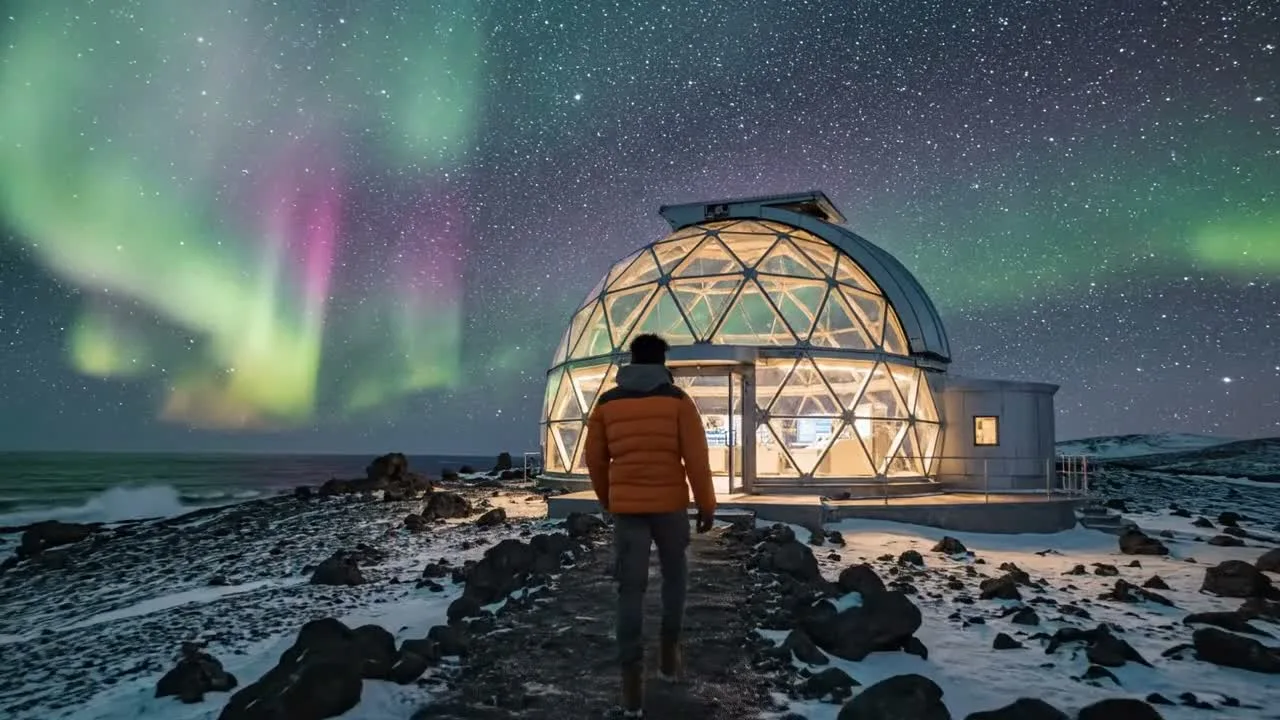
Glass observatory

Veo 3.1 Quality · 1280 × 720 · 8 seconds

Prompt

A cinematic wide shot of a glass observatory perched on a volcanic island beneath a brilliant aurora. A single researcher in an orange jacket walks slowly toward its warm-lit entrance as the camera glides forward. Soft ocean waves, wind against glass and distant footsteps are clearly audible. Believable architecture, realistic atmospheric depth and coherent human movement, no speech, no text, no cuts.
Previews play muted. Use the video controls to pause, replay, or listen.

What you can create

Compose cinematic video with Google Veo 3.1 Quality. Describe how the camera moves, what the subject does, and what the scene sounds like. Use the DREAMMMER agent to develop the shot from text or animate an image you already like.

A cinematic sense of space

The glass-observatory example uses reflections, depth, and a measured camera move to reveal the environment. Give the viewer a clear focal point before describing atmospheric details. This helps a short shot feel like one composed moment.

From an impossible still to a moving scene

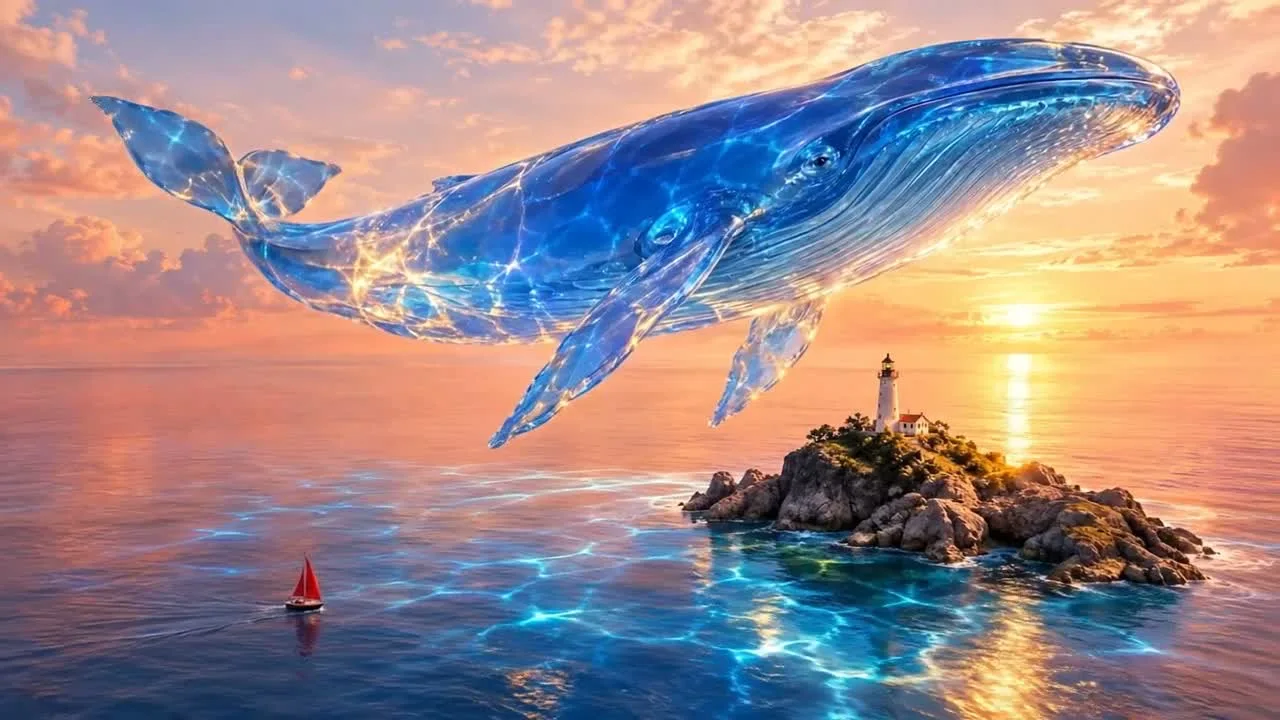
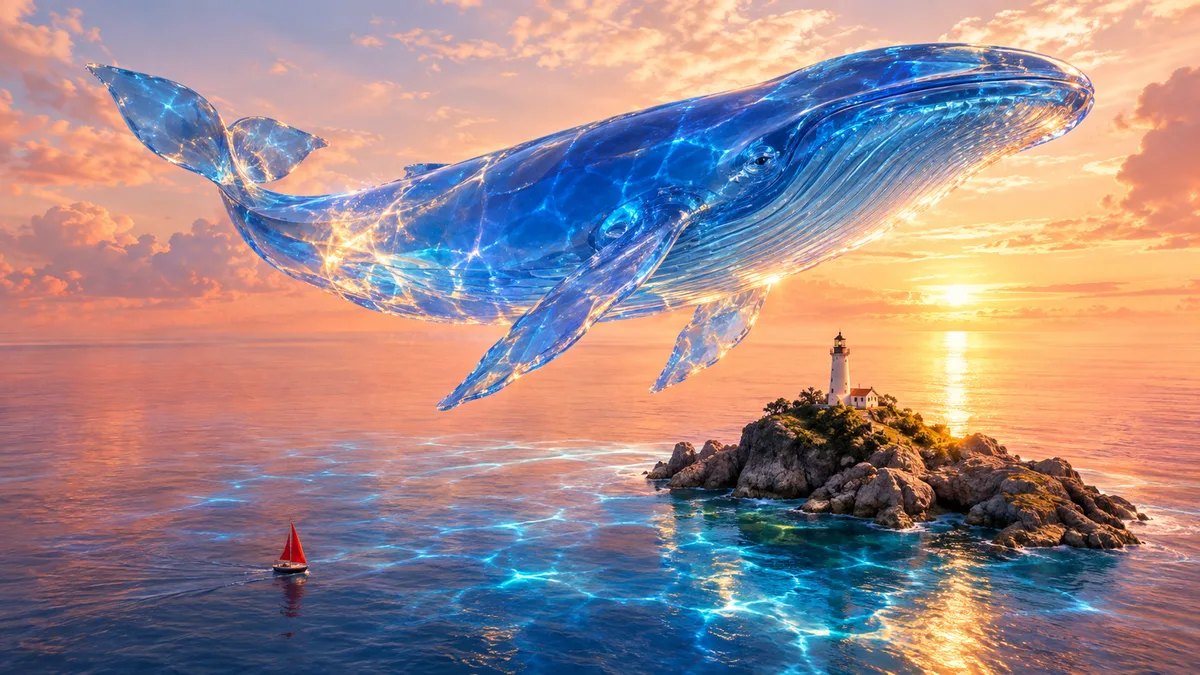
A translucent whale floating above the sea supplies the starting image for our reference clip. The motion brief asks for gentle movement and a coherent camera path. Compare the starting composition with the video to see how the scene develops.

Atmosphere includes sound

Veo generates audio alongside video. Specify wind, water, mechanical sounds, or silence as part of the creative direction. Our examples avoid spoken dialogue; turn on the player sound to judge the actual generated atmosphere.

From a reference image to a moving scene

The input still was made with GPT Image 2.5 Flare. The video was generated with the model selected on this page.

Starting image · GPT Image 2.5 Flare

A whale above the sea

Veo 3.1 Quality · 1280 × 720 · 8 seconds

Prompt

Bring this surreal glass-whale scene to life. The translucent blue whale slowly glides above the lighthouse, the tiny sailboat advances across the water and refracted blue light ripples on the sea. Maintain the glass material, island layout and dreamy golden palette. Camera slowly pushes in. Gentle waves and a deep airy resonance, no speech, no cuts or text.

How to create with Veo 3.1 Quality

  1. Describe the result

    Tell the agent the subject, composition, and intended use. Add a reference when the selected model supports it, and say which details should be preserved.

  2. Choose your settings

    This page starts with the featured model selected. Review the aspect ratio, available output size, and credit estimate. For video, also choose a duration that fits the action.

  3. Review and keep creating

    Open the completed work and inspect the details. Continue in chat with a specific revision, or download a result you want to use. Check visible text and listen to generated sound before publishing.

Settings and credits

These are the settings connected in DREAMMMER. The table shows output credits without reference inputs; your composer estimate includes the inputs and settings of the actual request.

Clip length: 4 / 6 / 8 s

OutputCredits
720P · 8 seconds1042
1080P · 8 seconds1063
4K · 8 seconds1584

Frequently asked questions

Which clip lengths can I choose?

The composer offers 4, 6, or 8 seconds for Veo 3.1 Quality. These are discrete choices, so plan the action around one of those lengths instead of an arbitrary duration.

Why can the 4K estimate change with an image input?

The current 4K tariff distinguishes text-to-video and image-to-video. Adding a starting image can therefore change the credit estimate. Review the amount after selecting the resolution and adding references.

Is this the full Google Flow application?

No. This is Veo 3.1 Quality inside DREAMMMER’s conversation workflow. The available generation controls are shown in the composer; separate tools in Google’s own applications are not implied.

Do I need an account to create?

You can explore the page and prepare your prompt first. Sign in when you are ready to generate; the creative draft and selected model carry into the sign-in flow. Generation uses your available credits or eligible plan allowance.

Model information: Veo 3.1 Quality

Your next idea, made with Veo 3.1 Quality.

Start with a few words. Keep creating with your agent.

Create with Veo 3.1 Quality